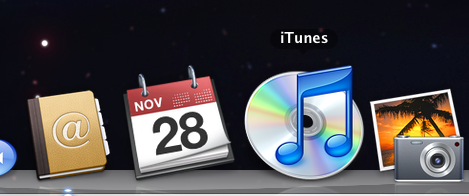
Apple dock likes the taskbar which you used in Windows. The dock is your application shortcuts place, shows which you are running applications and for each open application or document, where the task bar stores minimized windows. Also it contains trash can and shortcuts to most commonly used applications, much like Windows’ quick launch icons.
| Using the dock |
Even though you can move your application's icons to dock to create a shortcut to run that application. You can understand the running applications by a dot left or right side of the icon (it depends on the position of your dock). You can change the applications by pressing to the icon which application you want to switch.
| Positioning and showing and hiding the dock |
You can customize the dock position how you wish to.
If you want more space on your desktop or on your applications, you can hide your dock.To hide or to customize the Dock’s position, control-click (hold down the control key while clicking if you didn't set up right click) the Dock’s vertical line. This displays the menu from which you may select different Dock settings, including position and show/hide.
| Using the dock |
Even though you can move your application's icons to dock to create a shortcut to run that application. You can understand the running applications by a dot left or right side of the icon (it depends on the position of your dock). You can change the applications by pressing to the icon which application you want to switch.
| Positioning and showing and hiding the dock |
You can customize the dock position how you wish to.
If you want more space on your desktop or on your applications, you can hide your dock.To hide or to customize the Dock’s position, control-click (hold down the control key while clicking if you didn't set up right click) the Dock’s vertical line. This displays the menu from which you may select different Dock settings, including position and show/hide.


 Posts
Posts


0 comments:
Post a Comment